How I Record My Gameplay from 24 Consoles
For the last 13+ years, I've been capturing my gameplay in video form. It all started on my 19th birthday when my Dad bought me an Elgato Game Capture HD that was on the shelf inside an Apple Store. I raced home and hooked it up to my PS3 (with a D-Terminal style plug no less) and recorded this hard mode run of the final boss in Guacamelee!.
Previous attempts involved aiming a point and shoot camera at a tube TV. This capture card paved the way for my to make better videos, get a gig writing guides for IGN, and to become obsessed with video quality, resolution, and more.
Nowadays, I am capturing video from tons of game consoles all the way up to 4K120. It's amazing to look back the last decade and see how the capabilities have expanded. It's a ton of footage, which is why I created The Max Frequency Library, a YouTube channel dedicated to high-quality, no commentary gameplay for anyone to use.
In light of all that, I thought it would be both cool and helpful to share just how I capture all this footage. I've come a long way from recording to a USB stick on my 11'' MacBook Air. I'll share the entire process from start to finish, going over all my gear, tools, and tips. I hope it helps you figure out how to record your own gameplay and gives you ideas for your setup. So without further ado, let's dig in.
Why Are You Capturing Gameplay?
Okay. Maybe a little more ado. Before we go down the rabbit holes of gear, cables, and bitrates, we need to answer the questions of why and what: "Why am I capturing this gameplay?" and "What do I have now?"
Are you trying your hand at Digital Foundry-style analysis? Is this for your budding video essay project? Perhaps you want to study and present various game design principles? Do you want to livestream?
Depending on what you are doing will determine the kind of set-up you need. Streaming doesn't need all the resolution, but that technical analysis might.
The question of what gear you have on hand right now is vital.
Never let gear be the deterrent from creating.
You have what you need, likely in your pocket. Our modern cellphones have marvelous camera—much better than the Canon Powershot A710 IS I used to record my Mario Kart Wii Review way back in 2008. When I didn't have the means to record DS games, I mounted my iPhone and shot top down footage.
Look at what you have and how you can leverage it to make your project come to life. As your gear gets better, your options get more diverse, but it won't make the creation itself better. That responsibility rests with you.
With that out of the way, up first is all the gearrrrrr.
The Gear
I know I just said gear should not be the deterrent and don't let it get in the way blah blah blah. Sound advice. But I love gear. I figure you do too. I'll work my way through it all by going from consoles to capture. You can't record gameplay without some games to play.
Currently, I have 24 consoles hooked up and ready to record. All the way from the Nintendo Entertainment System to a PlayStation 5 Pro.1 The entire goal of this is to make recording gameplay as easy as turning on the console and pressing record. I have optimized to reduce friction as much as possible. There is a metric ton of cables that go into hooking them all up to my main TV (a 55'' LG C1 OLED), but it's probably best to categorize them as "Analog Consoles" and "HDMI Consoles." This segmentation provides a fairly clear line of what daisy chain of cables, splitters, switches, and scalers I'll need to get the console video signal into the capture card for recording. Here's a diagram I made in April 2026 after I rearranged everything.
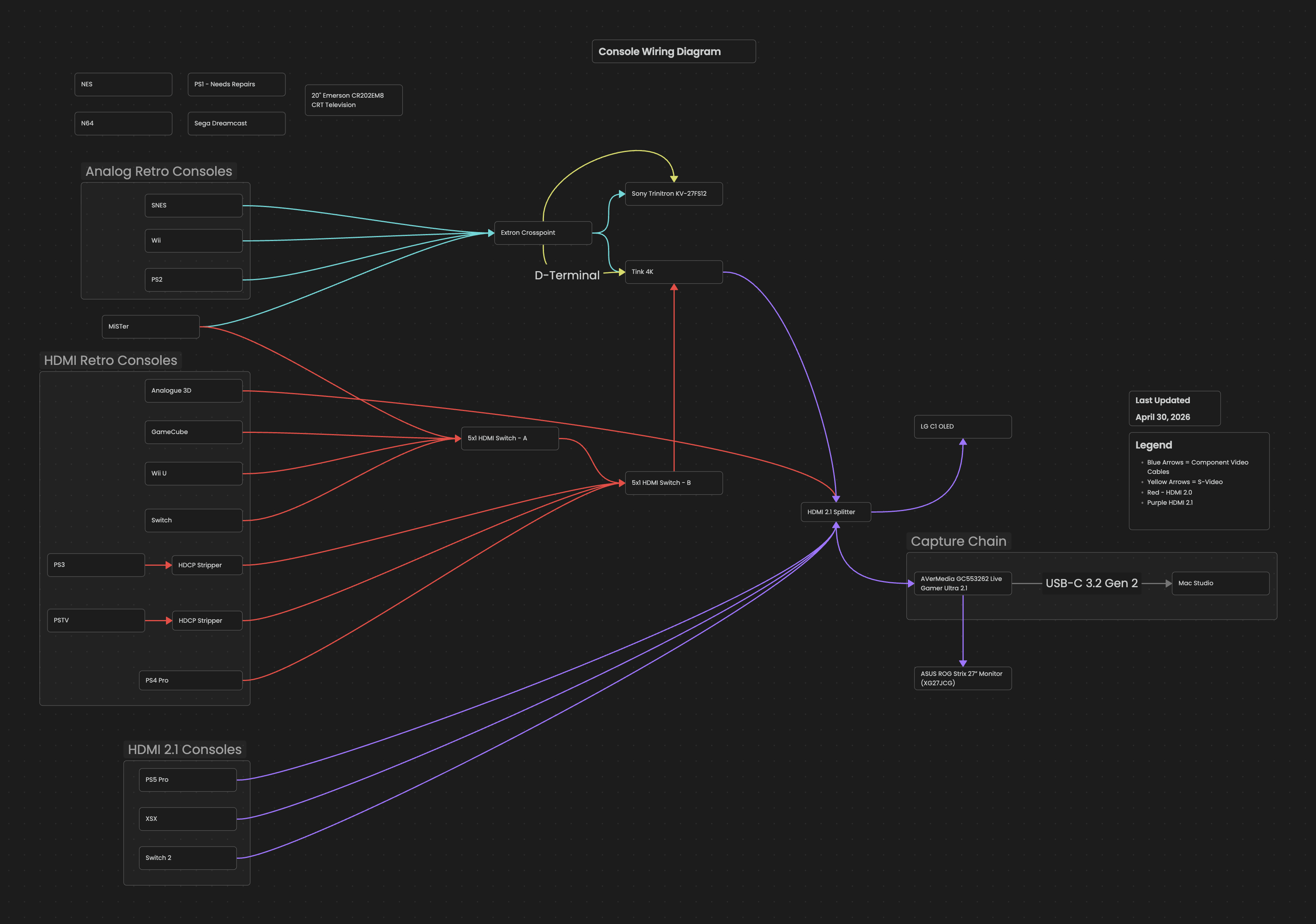
Cables! All of my analog video systems are using component cables, either from the original console manufacturer or HD Retrovision. The lone exception is my N64, which is using an Insurrection Industries S-Video cable. These red, green, and blue cables provide the cleanest signal for my set-up without going down the SCART rabbit hole. All of these component cables don't feed directly into the TV mind you, instead they go into my Extron Crosspoint Switcher. This bad boy has eight inputs and four outputs, allowing me to feed in my analog consoles and simultaneously display them on four screens.
Over in HDMI Land, those consoles have cables that match their relative spec. This matters the most with the Xbox Series X, PS5 Pro, and Switch 2, needing the highest speed HDMI 2.1 cables for the full suite of 4K 120Hz VRR HDR shenanigans that modern gaming is capable of producing. Just like my analog consoles, these feed into a couple of HDMI switches that turn a bevy of HDMI cords into one single output, perfect for feeding directly into my scaler or splitter.
With this range of video game consoles comes a gamut of resolutions. To make all of these work seamlessly with capture cards and my TV, I need a scaler to bring the non-4K consoles up to the modern times. My scaler of choice is the RetroTINK-4K Pro, but you cannot go wrong with any of the RetroTINK products—that new RT6X CE looks great and at an even better price point!
One of my Extron Crosspoint outputs goes straight into the TINK over a HD-15 cable; this feeds in all my analog consoles. On the sub-4K HDMI side, everything feeds into the TINK over an HDMI cable from two HDMI switches daisy chained together. Those two cables into the TINK and one cable out gives 17 of my 24 consoles razor sharp 4K output. chef's kiss
The single output cable goes into specific HDMI splitter to take full advantage of the video features like VRR and 120Hz. This Monoprice Blackbird 8K Dual Function Splitter/Switch lets me take a single HDMI 2.1 input and send it to two outputs: one to my television and one to my capture card. This keeps the modern 4K120 consoles connected and have a final split for everything else. I have to hot swap in the higher end consoles (I don't have a switch with enough inputs, but I have had my eye on this UGREEN one). The splitter also means that I can play on my television regardless if I am capturing or not. The friction is nonexistent for play or capture.
The Capture Card
This is the piece of gear vital to the whole thing, right? These days I used an AVerMedia GC553262 Live Gamer Ultra 2.1, which is capable of 4K120 in the realm of macOS and a little more if you can stomach Windows 11. It's not my favorite card and the software support from AVer on macOS is abysmal. Their app still runs through Rosetta 2. I also seem to be having an issue getting video out the the output HDMI port, but I need to test further.
For twelve years I used Elgato capture cards, until a slew of technical issues and their continued focus on forcing functionality behind software.2 Their capture cards are good, but I am not a fan of the overall software direction the company is going. I may have to return to Elgato if this Live Gamer Ultra is already flaking out.
A slightly cheaper option I do have lying around is the GENKI ShadowCast 3 Pro, which can record 4K60, but at launch had some colorspace issues. They are still present. It seems to be a totaly mismatch of the color range by my estimate. GENKI has provided no updates for the card. One reddit user suggested suggested recording at a lower resolution as a possible fix.
The Computer
These days I am fortunate enough to have two very capable Mac computers. I have a M2 Pro MacBook Pro and a M3 Ultra Mac Studio, so I am not sweating framerates and resolutions when it comes to capture.
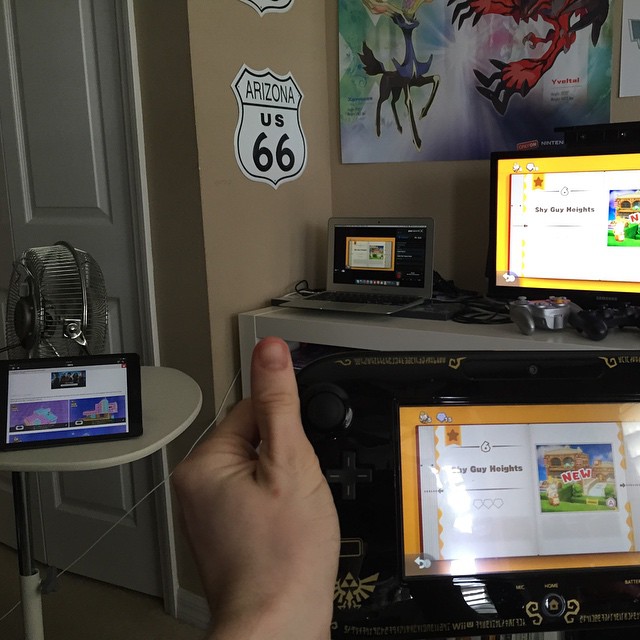
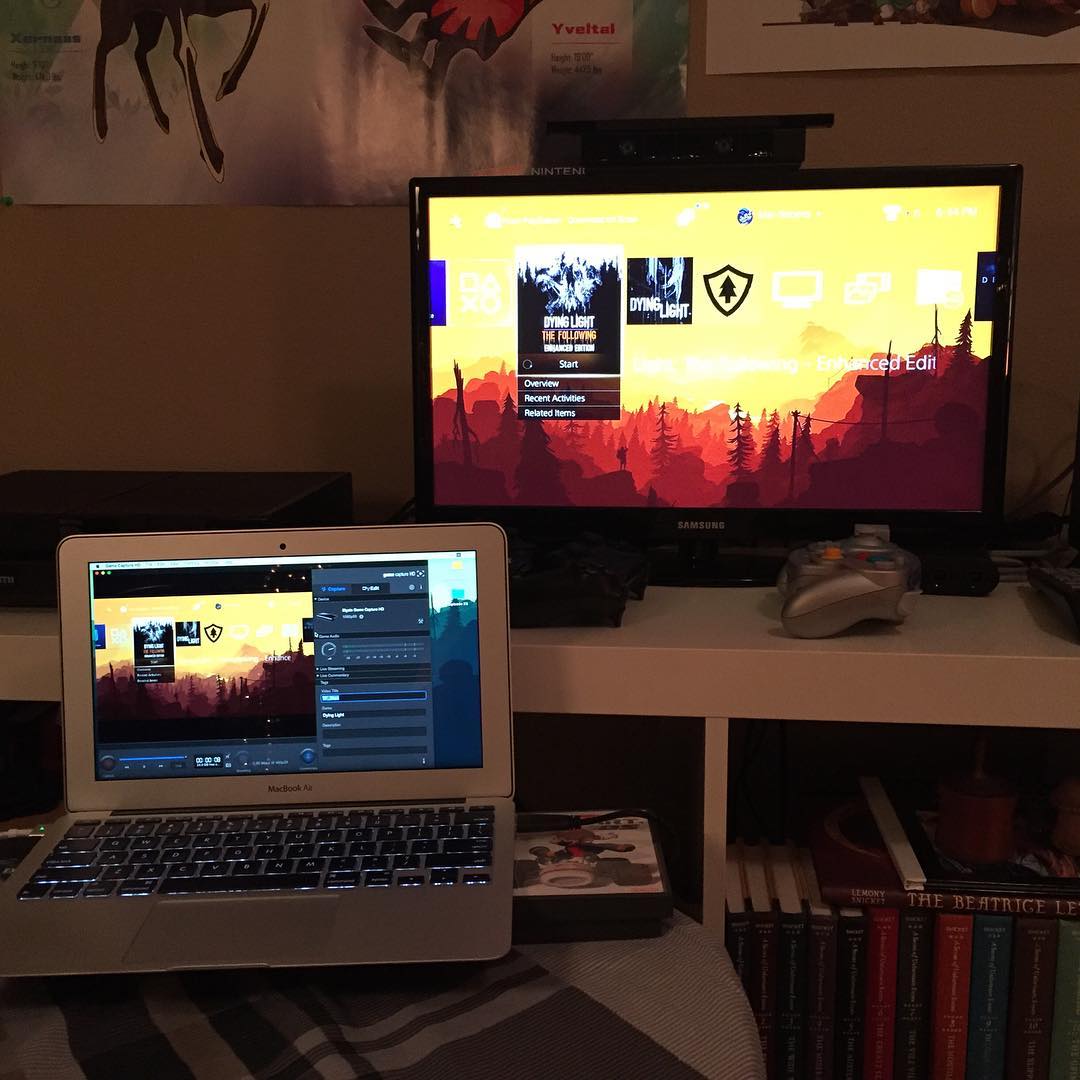
This has only been a recent change in the last year. Until these monstrous machines entered my life, I was rocking lower end Mac computers. I started out with an 11'' MacBook Air. I'd elevate the laptop on DS game cases to improve air flow. This is the machine I used to write the bulk of my guides for at IGN. Just look at that first photo—I had a fan pointing at the laptop too! I pushed that little machine so hard because I believed any Mac could do anything.
In 2017, I was given a 15'' MacBook Pro as a graduation present before I bought a M1 iMac in 2021 that served me well until it was passed along this year.
Again, you do not need the rip roaringest computer to record your gameplay. Don't let big prices stop you from creating. To be clear, I am not saying go into debt, but to use what you have! If I can create guides and videos for the world's largest gaming site on that tiny MacBook Air, you can too.
Software
So I have gameplay footage from the console to the capture card, but what do I use to record it?
OBS unfortunately.
OBS is great, powerful free software. It's remarkable. But, man, I loathe using it. A crammed, complicated, and wrought experience that comes at the cost of being multiplatform.
On the other hand, it is much better than official company software like Elgato's or (I assume) AVer Media's application. I can't test that one on macOS.
I've tried Meld, but didn't care for it.
So I decided to take the lessons I learned in the creation of DDDS and I am building my own macOS-focused capture app. I don't have a name yet, but I think it is shaping up quite nicely. You can capture in 4K60, take notes, snap screenshots, record "hidden" commentary tracks, and have a rolling buffer of footage. It's the app I wished I had when I wrote guides. It's the app I want when I record for a video essay. I'll make sure to come back here and update the article when the app is live.
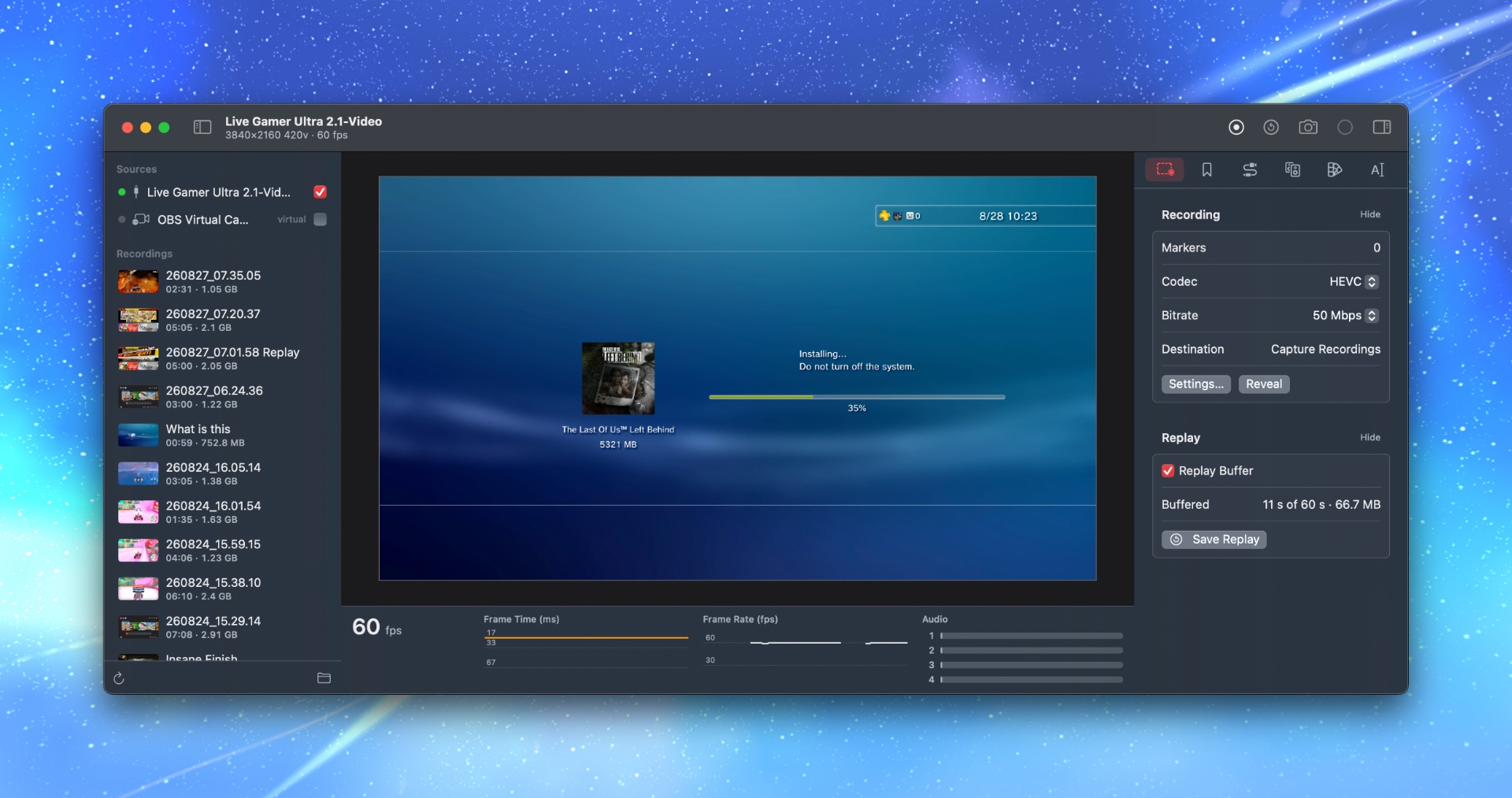 My PS3 bit the dust, so I have been redownloading a lot to a new slim I just bought.
Edge Cases
There are a couple of platforms that exist outside of the capture card route because of their lack of HDMI out—the portable consoles. I have native solutions for the Game Boy line of consoles thanks to the Game Boy Player hardware. My PSP and Vita are served by the Vita TV. That only leaves the Nintendo DS, 3DS, and the Meta Quest 3S.
I could (and have!) streamed my Meta Quest to an old Chromecast and captured that, but for high-res, native capture there's a developer account and app song and dance you have to partake in. It's available if I want, but I rarely do it.
As for my DS and 3DS, earlier this year I finally sent my 3DS to be modded for USB-C capture. Up until last month, the only way to record that footage was OBS and recording the screen with what cc3dsfs output. That was too much friction for me, so I built DDDS as a native Mac app for playing and recording your modded 3DS. I get pin sharp DS and 3DS footage, right from the app, no need for capture cards or screen recordings. I am quite proud of this app.
Wrap-Up
That's the whole flow. More than the gear though, I hope the philosophy and practice behind how I capture helps and inspires you. I know how easy it is to get stuck in the trap of looking at other creators and thinking "Well, if I had their gear I'd make the best stuff out there!" I have coveted the best and it never works out for me. That kind of mindset is detrimental to creating.
My hope with this article is that it has inspired you and given you new ideas. I also hope it answers some technical questions. It's hard to figure all this stuff out when you are just starting. May my years of experience help you get a jumpstart.
Resources
My Life in Gaming
My pals Coury Carlson and Marc "Try4ce" Duddleson have been making videos on My Life in Gaming for ages. I always go to them first for advice and research on the options available for the sharpest picture out of a console. Their RGB Masterclass series is instrumental.
Mach Nacho Productions
My favorite modder on YouTube. Wonderful guides and explorations of that side of retro gaming.
Retro RGB
The source for retro gaming news and guides.
RetroTINK
One stop shop for all your upscaling needs.
Footnotes
-
I have a NES, SNES, N64, GameCube, Wii, Wii U, Switch, Switch 2, Game Boy, GBC, GBA, DS, 3DS, PS1, PS2, PS3, PS4, PS5, PSP, Vita, PS VR2, Xbox Series X, Meta Quest 3S, and MiSTer FPGA all ready for capture. ↩
-
Earlier this year, I ordered and tried the new Elgato Wave XLR Pro, which touted a "Standalone Mode" that would work without their Wave Link software—a "set it and forget it" approach. Yeah, that was not as simple as they portrayed it. From my journal entry that day; "If the app isn't running, whatever you set up is running, no adjustments possible. Not virtual sound devices you can control outside of the app. It's messy. Elgato's software is slow, buggy, and my audio was dropping with it." Bad software can ruin decent hardware. ↩